
MoCast – Help & Walk-Through Guide
1. What Is MoCast?
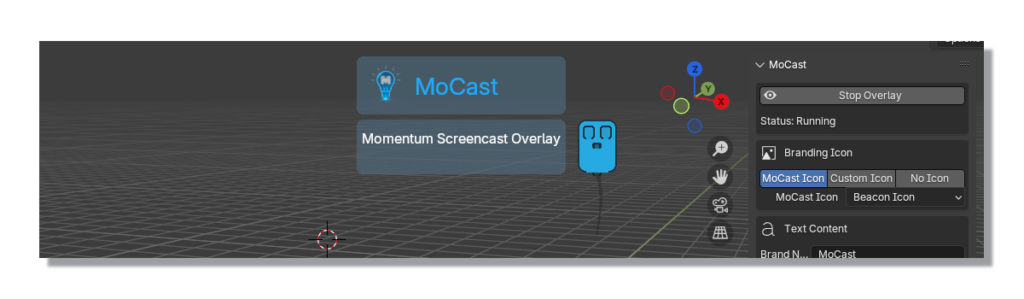
MoCast is a lightweight, modern input-visualization overlay that runs directly inside Blender’s 3D Viewport.
It’s designed for creators who teach, stream, or record tutorials and want their audience to clearly understand what’s happening on screen.
MoCast displays keystrokes, mouse events, modifier keys, transform axes, and optional branding—all presented in a clean, customizable UI that adapts to your personal or studio style.
📌 Platform Support: MoCast is Windows-only at this time. macOS and Linux versions are being explored.
Blender Compatibility: MoCast requires Blender 4.4 or newer (due to the new Extensions system).
MoCast works alongside any recording or streaming software. It does not capture video itself; instead, it ensures your actions inside Blender are communicated clearly and professionally.
2. Starting & Stopping MoCast
Start Overlay
Runs MoCast inside the 3D Viewport where you click Start.
Only one viewport at a time displays the overlay.
Stop Overlay
Stops MoCast globally across all viewports.
To move MoCast to another viewport
Because Stop Overlay shuts the system down everywhere:
- Switch to the viewport where you want MoCast to appear
- Open the N-Panel → MoCast
- Click Start Overlay
MoCast will now run in that viewport.
This ensures predictable, stable control during livestreams and recordings.
3. Moving the Overlay (Shift-Drag)
You can reposition the MoCast panel anywhere inside the active viewport.
To reposition:
- Hover your mouse over the MoCast overlay
- Hold Shift
- Left-Click and drag it to any location
MoCast remembers this position automatically.
If Shift-Drag stops working:
Blender occasionally interrupts modal input.
To reset drag control:
- Open MoCast in any 3D View
- Click Stop Overlay
- Click Start Overlay in the viewport you want
Dragging functionality will be restored.
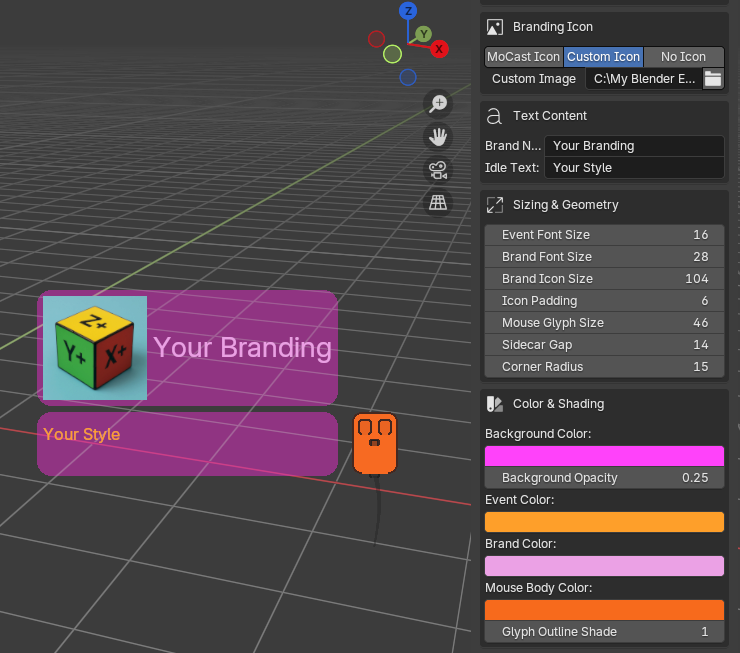
4. Branding Icon
MoCast lets you style your overlay to match your identity.
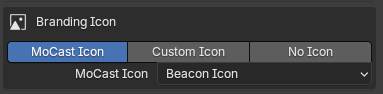
MoCast Icon
Choose from built-in curated icons (Beacon, Cursor, Keycap, Camera, Animation, Rigging, Shader, VFX, etc.).
Custom Icon
Load your own PNG or JPG file. Ideal for:
- YouTube channels
- Studios
- Online courses
- Branding consistency
No Icon
A clean, minimalist header.
Icon Size & Padding
Fine-tune the appearance of your title block with sizing and spacing controls.
5. Text Content
Brand Name
Editable text that appears beside the icon (e.g., “MoCast”, your YouTube channel, or your studio name).
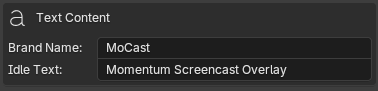
Idle Text
Shown when MoCast is idle (depending on settings).
Common options:
- “Momentum Screencast Overlay”
- Your tag line
This helps keep your overlay meaningful even when no events are active.
6. Sizing & Geometry
MoCast gives you full control over the visual scale of the interface:
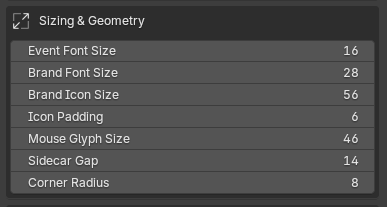
These let you match MoCast to your recording layout—large for small screens, compact for tight UI spaces.
7. Color & Shading
MoCast is fully color-customizable, allowing perfect branding alignment.
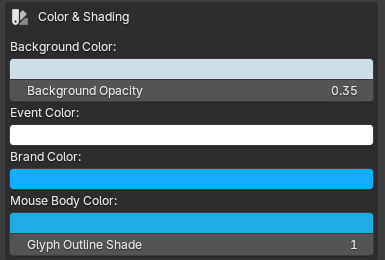
Pro Tip: Brand-Matched Overlays
Use Blender’s eyedropper tool to pull colors directly from your icon or brand assets.
This ensures your tutorials look cohesive, polished, and unmistakably “yours.”
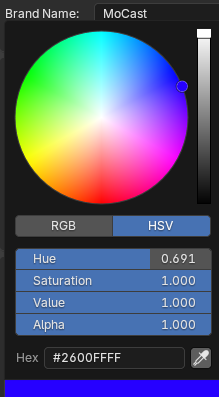
Brand-consistent overlays make your tutorials feel more professional and easier for audiences to follow.
8. Visibility & Behaviour
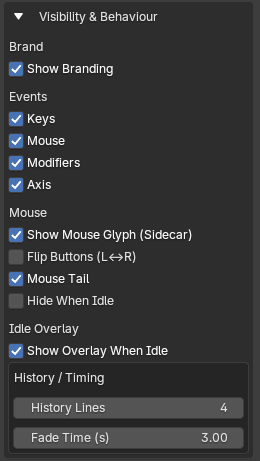
Show Branding
Toggle the title block on/off.
Event Visibility
Individually toggle:
- Keystrokes
- Mouse input
- Modifier keys
- Transform axis readout
Mouse Glyph
MoCast includes an ergonomic sidecar mouse graphic.
Options include:
- Show Mouse Glyph
- Flip Buttons (L↔R) — left-handed support
- Mouse Tail
- Does your mouse need a tail? Probably not — but if you want the glyph to look extra cute, MoCast lets you give it one.
Idle Overlay
Controls whether MoCast remains visible when inactive.
History & Timing
- History Lines — number of recent events shown
- Fade Time — how long events remain visible
9. Presets
MoCast includes a simple but powerful preset system for saving styles.
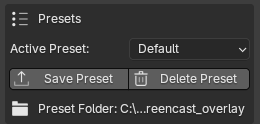
Active Preset
Switch between your saved styles instantly.
Save Preset
Saves your current MoCast configuration under a name of your choice.
Delete Preset
Deletes the currently selected preset.
Important details:
- You must select a preset to delete it
- The Default preset cannot be deleted
- Deleting removes the file but does not change your current view until another preset loads
- After deletion, MoCast automatically reverts to Default
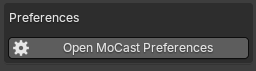
10. Preferences
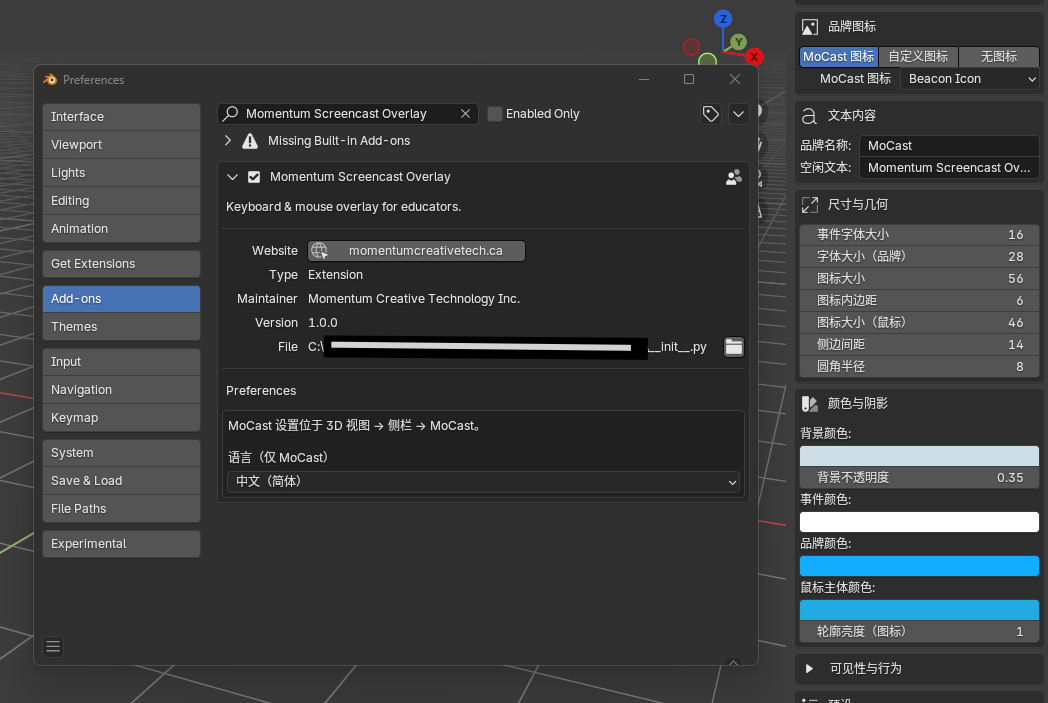
Opens the add-on’s preferences entry within Edit → Preferences → Add-ons.
Language Override
Run MoCast in a different language than Blender’s UI.
Supported languages include English, French (Canada/France), Portuguese (Brazil), Spanish, German, Russian, and Chinese (Simplified).
11. Best Practices
✔ Keep your overlay on-brand
Leverage your studio colors and icon for consistency.
✔ Use Shift-Drag thoughtfully
Place MoCast where it enhances visibility without covering important UI or content.
✔ Remember: Stop is global
Stopping MoCast resets it everywhere; starting activates it in the viewport you where you clicked Start.
✔ Light touch enhances clarity
Avoid oversized fonts or icons unless intentionally stylized.
✔ Tail or no tail
It’s optional. But it’s cute. And sometimes cute wins.
12. Troubleshooting
Shift-drag not working
Stop → Start to reset modal control.
Overlay appears in the wrong viewport
Stop → Start in the viewport you want.
Custom icon not showing
Ensure the image is readable by Blender (PNG recommended).
No events showing
Verify that Keys, Mouse, or Modifiers are enabled in the Visibility section.
13. Final Notes
MoCast is built for creators who value clarity, speed, and a polished teaching experience. Whether you’re making YouTube tutorials, livestreaming, recording a course, or documenting your workflow, MoCast helps your audience follow every action intuitively.
This is the beginning of a broader suite of creative tools from Momentum Creative Technology Inc.
More innovations are on the way.